Kairo.Your old PC. Fast again.
The simple system for older PCs. Built light, adapts to your PC – instead of Windows 10.
€19 one-time, incl. 20% VAT, for one PC.
Please note: Kairo’s screens and built-in programs are in German for now.

Fast and safe
Windows 10 has reached its end.
Your PC hasn’t.
Since October 2025, Windows 10 no longer gets regular security updates. Windows 11 needs newer hardware that many older PCs don’t have. Kairo is built light, adapts to your PC and comes with protection built in.
How Kairo stays quick on old PCs:
Adapts to your PC
Kairo measures your PC and picks the right tier. If something stutters, it switches down a tier by itself.
Drawn sparingly
No constant blurring, in any tier. Feder and Essenz do without effects entirely.
More from little memory
Kairo compresses its memory (zram) and leaves out unnecessary background tasks.
No virus scanner slowing it down
Windows viruses don’t run on Kairo. A classic virus scanner would be a burden on old PCs – ClamAV needs more than 1 GB of memory, according to its own documentation.
How Kairo protects you:
Protection from scam sites
Kairo blocks known malware and scam sites for all programs – via the non-profit service Quad9. Can be switched off. Email runs on Outlook with its spam filter.
Your folders backed up
Once installed, the Guard backs up Documents, Pictures, Desktop, Music and Videos every 15 minutes when something changes – on the same PC – and to a USB stick if you like.
Updates by themselves
Once installed, security updates from Debian arrive in the background – including for the browser and LibreOffice. Programs from the app shop update themselves too.
Lock with a password
With protection against guessing, and automatic locking.
The Leistung program shows live what your PC is doing, and you switch between Save and Full power with one click. New things like printing don’t slow it down: Kairo only starts the service for it when you need it. No protection catches everything – more under What you should know first.
Kairo at a glance
One button for everything.
The round Kairo button opens all programs, search and settings. Text, email, web and files sit right next to it.
Get more when you want it.
VLC, Zoom, WhatsApp, YouTube and much more – from the app shop.
You see what protects you.
The Guard shows you at a glance which protection is running – and backs up your folders.
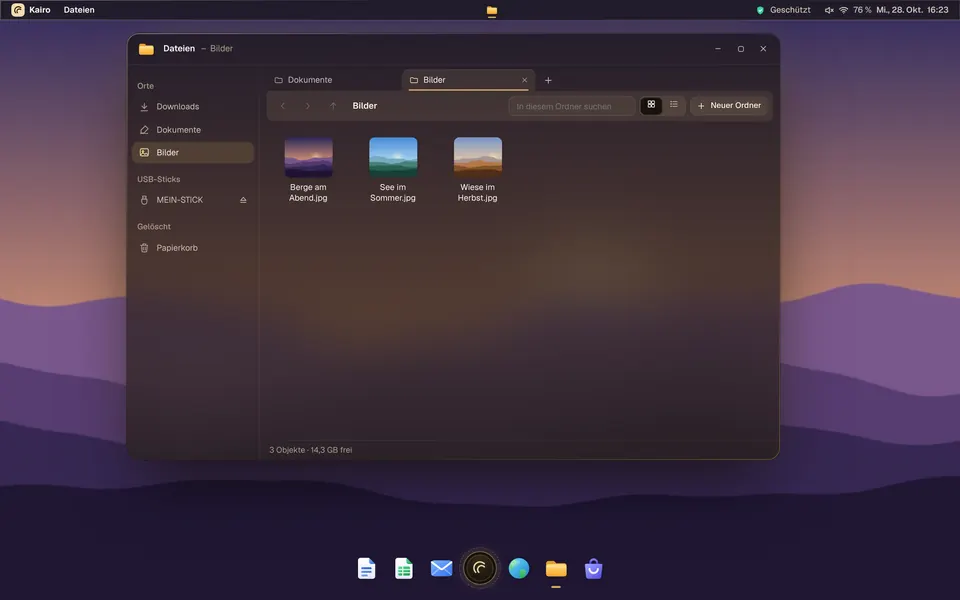
Your photos, nicely sorted.
Folders, USB sticks and the bin in one window – with tabs. One click turns a photo into your background.


Programs
Everything you need.
Well-known programs, already built in and set up in German: the Chromium browser (the basis of Google Chrome) and LibreOffice, plus Outlook on the web for your email. They come from Debian – once installed, they get their security updates by themselves. No ads.
- WebBrowse the internet – Chromium, the basis of Google Chrome
- E-MailEmail with Outlook on the web
- Kalender (Calendar)Appointments in the Outlook calendar
- SchreibenWrite letters, Word files too – LibreOffice
- Tabellen (Tables)Sums and lists, Excel files too
- Präsentation (Slides)Show slides, PowerPoint files too
- Dateien (Files)Folders, USB sticks and the bin – with tabs
- Rechner (Calculator)Calculator, scientific too
- Ansicht (Viewer)Flip through photos, read PDFs
- Spiele (Games)100 games by Kairo: solitaire, Sudoku, chess, Mahjong, platformers and more
- Wächter (Guard)Shows your protection and backs up your folders
- App-ShopGet more programs and web apps
The round Kairo button
At the bottom in the middle. It opens all programs, search, settings and switching off. The Windows key opens it too. Top left under “Kairo”: about the system, performance and updates.
Real windows
Programs open as windows: minimise, maximise, close. The desktop stays visible, and running programs appear as icons next to the Kairo button and in the window bar at the top.
Two windows side by side
Windows key + left or right arrow, or drag the window to the edge. Windows key + up arrow uses the whole space.
More from the app shop, in one click:
VLCZoomSignalSpotifyGIMPYouTubeORF ONWhatsAppwillhabenFinanzOnline
Examples. For these you need internet; programs run sandboxed. The names belong to their owners.
Games
100 games. Already built in.
Mahjong, backgammon, solitaire, chess, sudoku, plus platformers and space adventures – Kairo’s own collection. No ads, no internet, no in-app purchases.
- 19 Cards
- 27 Puzzles
- 21 Board
- 17 Skill
- 5 Adventure
- 11 Words & dice
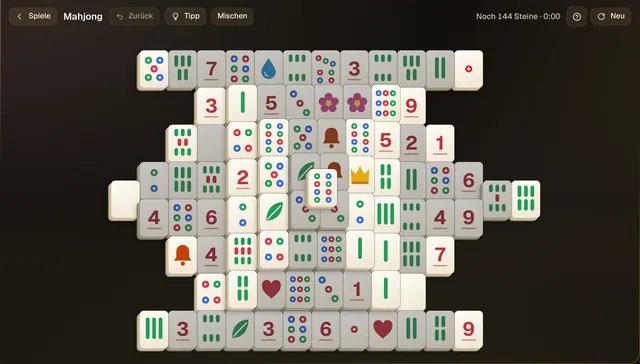
MahjongPuzzles144 tiles, with hints and shuffle. 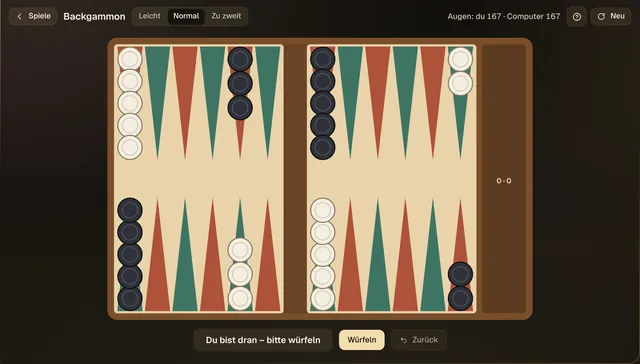
BackgammonBoardAgainst the computer or two players on one PC. 
SolitärCardsDraw one or three – the classic. 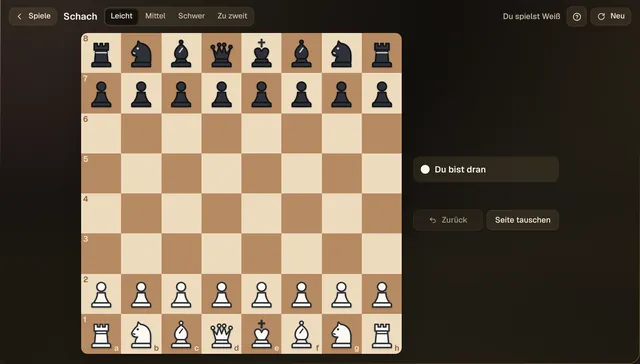
SchachBoardAgainst the computer at three levels – or two players. 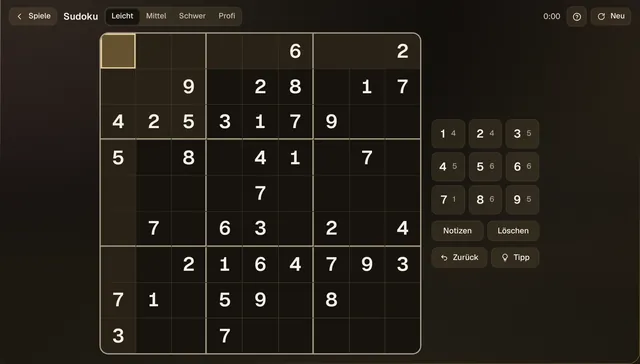
SudokuPuzzlesNumber puzzles to unwind. 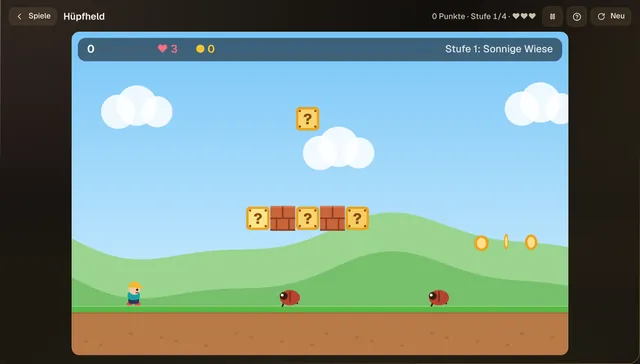
HüpfheldPlatformerJump, collect coins, dodge beetles – four stages.
Four tiers
As beautiful as your PC can handle.
Kairo picks the right tier by itself when it starts – the weaker the PC, the lighter the tier. You can switch at any time, and every tier comes in light or dark. Kairo draws all four sparingly, without constant blurring – so that it runs more smoothly on weaker PCs too.

Feder. Feder means feather: for very weak PCs, no effects at all and no background picture. Kairo also picks it with 1 GB of memory.

Essenz. Calm and clear, without effects. For older PCs that like it quick.

Fluss. Bluish tint, with depth and gentle motion. Good-looking and still quick.

Aura. Black and gold, with moving light and the Kairo arc on the horizon. For stronger PCs.
Feder and Essenz are always included. Fluss and Aura come with the licence after the 30 test days. Screenshots with sample data; which tier runs smoothly depends on your PC.
Requirements
Will Kairo run on my PC?
On many PCs from about 2008 onwards. This is what it needs:
Processor
64-bitIntel or AMD, from about 2008
Memory (RAM)
- 1 GBminimum
- 2 GBrecommended
- 4 GBcomfortable
1 GB: Feder (Feather) tier, tested in an emulator
Hard drive or SSD
10 GB freeBetter 20 GB or more with programs from the app shop
USB stick
4 GBFor testing. Everything on it is erased.
- BIOS and UEFI, with Secure Boot
- Download 1.70 GB (ISO file)
- Internet not needed to test
- Drivers for graphics, sound and Wi-Fi built in
- Language: Kairo’s screens and apps are in German for now
Not suitable: PCs with a 32-bit processor (usually before 2008, for example with an Intel Atom N270) – Windows then says “x86-based processor”. PCs with an “ARM-based processor” don’t work either.
- Right-click Start › System (or Settings › System › About).
- Installed RAM shows your memory: at least 1 GB, 2 GB recommended.
- Next to System type it should say “x64-based processor” – even if it says “32-bit operating system” before it.
- You can see free space in File Explorer under This PC.
How it works
Four steps to Kairo.
Download
The Kairo file is free.
Put it on a USB stick
With the free program Rufus.
Start and test
From the stick. Nothing changes on your PC.
Keep it
If you like it, install Kairo – no internet needed.
Honestly
What you should know first.
Kairo is new. We test every version automatically in a simulated PC. We are only just starting to test on real older PCs – so please test from the USB stick first.
- Kairo is in German for now. Its screens are German, and the built-in programs are set up in German. From the USB stick the keyboard is German (QWERTZ); the installer lets you choose your layout.
- 1 GB of memory only tested in an emulator. Not yet on real PCs with 1 GB – 2 GB is recommended.
- Windows programs: many older Windows games and programs run – newer games with copy protection or anti-cheat don’t. Kairo tells you before installing what works.
- The app shop needs internet. The first program downloads 0.4 to 0.6 GB of shared building blocks once.
- Netflix, Prime Video, Disney+ and Spotify have not been tested yet. For protected videos (Widevine) Kairo needs Google Chrome from the app shop – Kairo tells you the first time and offers it.
- Nothing is saved on the USB stick. After you switch off, everything is gone – to keep things, install Kairo.
- No protection catches everything. Not every new scam site or email is caught. Stay careful with unexpected emails and payment requests.
- Bluetooth (headphones, mouse, keyboard): you pair devices under Einstellungen › Bluetooth – but we haven’t tested this with many real devices yet.
- Printers can be set up with one click – but we haven’t tested this with real printers yet.
- Automatic locking doesn’t kick in yet while a program or web app is open.
- No hard drive encryption. If the PC is stolen, your data is not protected.
Price
Pay once. Keep it.
€19
one-time, for one PC
incl. 20% VAT, no subscription
What you get for €19
Every new Kairo version
New features arrive on your PC by themselves – checked and signed, at no extra cost and without a subscription.
Fluss and Aura
The two most beautiful tiers: soft light, glass and smooth motion – on every PC that can handle it.
Windows programs
Install old Windows games and programs, also from CD images. Kairo tells you beforehand whether they will run.
App shop without limits
New programs like VLC, Zoom or GIMP and new web apps like WhatsApp or YouTube, any time.
Your own look
Colour moods, your photo as the background and the gentle Kairo sounds.
Performance and power
Live statistics with battery health and memory, plus Save or Full power with one click.
Help by email
Something doesn’t work? Write to us – a person replies.
No ads, no subscription
Once €19 for this PC. No ads in Kairo, no follow-up costs.
30 days, everything unlocked. From installing, you use Kairo with everything. After that, you decide:
| With licence€19 one-time | WithoutKairo keeps running | |
|---|---|---|
| Web (Chromium), LibreOffice, E-Mail (Outlook) and all built-in programs | ||
| Your data and your installed programs | ||
| Security updates from Debian and the Guard with Time Travel | ||
| New Kairo versions | ||
| New programs and web apps from the app shop | ||
| Install new Windows programs | ||
| Fluss and Aura tiers Feder and Essenz stay | ||
| Your own look: moods, background picture, sounds | ||
| Performance and power modes battery saver stays | ||
| Help by email |
Nothing is restricted when running from the USB stick. For comparison: a basic new PC costs from about €400 in shops – with Kairo, your current one keeps working.
You buy in the AUTOMATA shop, payment via Stripe. You get the licence key by email straight away. Because you get it straight away, your 14-day right of withdrawal (terms in German) ends with it – you agree to this when you buy. So please test calmly first. Your statutory warranty rights remain.
Download
Try Kairo. For free.
Download it, write it to a USB stick with Rufus, start your PC from it.
Kairo OS 0.9.2
- File
- kairo-os-0.9.2-amd64.iso
- Size
- 1.70 GB
- Date
- 29.10.2026
5c5e11b3a8250d44ac3fdf65f19cea7c467744dfec66a91e94e6c5af34071bee
ISO file, 1.70 GB, for trying Kairo from a USB stick
Questions
Good to know.
The most common questions about Kairo – sorted by topic.
Your question isn’t here? Write to us at office@automata.at.
Basics
Since 14 October 2025, Windows 10 no longer gets regular security updates, and Windows 11 doesn’t run on many older PCs. Instead of buying a new PC, you can install Kairo: it keeps getting security updates, is built for older PCs and comes with a browser, office and email. Try it for free from a USB stick first – nothing changes on your PC.
Yes, under the hood: Kairo is built on Debian 13, one of the most proven Linux systems, and gets its security updates from there. You won’t notice that in everyday use – Kairo has its own simple interface that works like a modern PC. You never need a command line.
Every program opens as a window, just like you know it from Windows: you can minimise, maximise and close it, and the desktop stays visible. Running programs appear as icons right next to the Kairo button – one click brings the program to the front. In addition, a slim bar at the top shows all open and minimised windows. Two windows side by side: right-click the icon and choose “Links anordnen” or “Rechts anordnen” (arrange left or right), press the Windows key with the left or right arrow, or simply drag the window to the edge. The Windows key with the up arrow gives a window the whole space.
New in 0.9.1:
- Files in Kairo style: folders, USB sticks and the bin in one window, with tabs – bring back deleted files with one click, flip through photos with the arrow keys.
- Light or dark: every tier comes in both – switch in the control centre or under Einstellungen › Aussehen (appearance).
- 100 games by Kairo: cards, puzzles, board games against the computer, platformers and brawlers – no ads, no internet, several at once in tabs.
- Window bar at the top: bring open and minimised programs to the front with one click.
Since 0.9: every program is a real window, plus:
- Printing: set up a printer with one click under Einstellungen › Drucker (Settings › Printers).
- Second monitor, TV or projector: under Einstellungen › Bildschirme (Settings › Displays), mirror, extend or use just one. Kairo remembers this for each monitor.
- Screenshot with the Print key – it goes to Bilder › Bildschirmfotos (Pictures › Screenshots).
- Notifications from programs appear above the windows. With “Nicht stören” (do not disturb), it stays quiet.
- Default programs: you choose what opens websites, PDFs, pictures and more.
- Backup to a USB stick: you choose the folders, and Kairo puts them in the folder “Kairo-Sicherung” on the stick.
- Programs from the app shop update themselves in the background.
- Find files: the Kairo search also finds files by their name.
- Accessibility: strong contrast and a screen magnifier (Ctrl + Alt + Plus or Minus).
None of this slows Kairo down: the print service only runs while you need it, and no search service runs in the background for finding files. You don’t need a licence for these new features.
Will it work for me?
If it has a 64-bit processor and at least 2 GB of memory, there’s a good chance. With 1 GB, Kairo starts in the Feder tier – so far we have only tested that in an emulator. We are only just starting to test Kairo on real older PCs. You’ll know for sure after testing from the USB stick – it costs nothing and changes nothing. How to check this in Windows is under requirements.
Many older ones do: with “Windows-Programme” you install old Windows games and programs, also from CD images (.iso, .cue/.bin). Before installing, Kairo shows a traffic light: runs, PC too weak, or doesn’t run. Newer games with copy protection or anti-cheat don’t run. For a lot of things you don’t even need them: well-known programs are already built in – a browser for browsing, LibreOffice for texts, tables and presentations, and Outlook for email and appointments. Services like Microsoft 365, WhatsApp, YouTube or your online banking work in the browser. More programs like VLC or Zoom are free in the app shop.
Yes. Kairo has LibreOffice built in: “Schreiben” (writing) opens and saves Word files, “Tabellen” (tables) Excel files and “Präsentation” PowerPoint files. Very elaborately designed files may look a little different than in Microsoft Office.
Not for trying and installing. For browsing, the app shop, updates and activating the licence, yes – via Wi-Fi or cable.
Not yet. Kairo’s screens are in German for now, and the built-in programs such as the browser and LibreOffice are set up in German. Websites and web apps appear in the language you choose on them. The installer lets you choose your keyboard layout.
Installing and help
When you try Kairo from the USB stick, your hard drive stays unchanged – after restarting, everything is as before. Kairo doesn’t show your Windows files; bring important files along on a USB stick. When installing, “Erase disk” (“Festplatte löschen”) is preselected: then all data on it is gone. With “Install alongside” (“Daneben installieren”), Windows stays, if there is enough free space. Back up your photos and documents first in any case.
No. Built in are drivers for graphics from AMD, Intel and NVIDIA, sound for many laptops and Wi-Fi chips from Intel, Realtek, Atheros, MediaTek and many from Broadcom and Marvell. Under Einstellungen › Geräte und Treiber (Settings › Devices and drivers) you can see what was detected. The self-test there checks sound (with a test tone), brightness, graphics, touchpad and Wi-Fi. You set up mouse and touchpad under Einstellungen › Maus und Touchpad: speed, tap to click and natural scrolling. Try from the USB stick whether everything works on your PC. You set up printers under Einstellungen › Drucker (Settings › Printers) and a second monitor under Einstellungen › Bildschirme (Settings › Displays). You pair Bluetooth devices under Einstellungen › Bluetooth (Settings › Bluetooth).
Yes. From the USB stick: pull out the stick, restart, done. If you chose “Install alongside” (“Daneben installieren”), you can choose between Kairo and Windows when starting. If you erased the disk, you need a Windows installation medium from Microsoft and a valid licence to switch back.
We do. Write to office@automata.at and briefly describe which PC you have and what happens. We reply as quickly as we can. Many answers about starting from the stick are also in the guide.
Licence and updates
On installed PCs, Kairo fetches the security updates from Debian 13, which it is built on, by itself in the background – even without a licence. Debian plans them until 2028, limited until 2030. Your programs from the app shop also update themselves in the background. New Kairo versions only arrive checked and signed: for 30 days after installing so you can test them, after that with a licence at no extra cost. There are no updates when running from the USB stick.
For the first 30 days after installing, everything is unlocked. After that, Kairo keeps running: all built-in programs, your data, your installed programs and web apps (including their updates) and the security updates from Debian. Without a licence, though, there are then no new Kairo versions, no new programs or web apps from the app shop, and only the Feder and Essenz tiers – Kairo shows this in the top bar as “Ohne Lizenz” (without licence). With a licence key (Einstellungen › Updates und Lizenz, i.e. Settings › Updates and licence), everything is unlocked again. The same applies if a licence was refunded or blocked. Nothing is restricted when running from the USB stick.
One PC. When you activate it, the licence is linked to that PC. New PC or reinstalled Kairo? Write to us and we’ll release the licence for the new installation.
Security
Not for Kairo – but you still need to be careful. Windows viruses don’t run on Kairo: almost all malware is made for Windows, and Kairo is Linux (Debian). Programs only come from Kairo, from Debian and from Flathub, and programs from the app shop run sandboxed. Without your password, no program can change the system files, and on installed PCs security updates arrive by themselves. A classic virus scanner would be a burden on old PCs: ClamAV, for example, needs more than 1 GB of memory just for its virus list, according to its own documentation.
Most damage today comes from fraud, not viruses: fake emails (“your parcel is waiting”), fake shops, calls from supposed technicians. No protection catches everything. Don’t open links in unexpected emails, and only enter passwords and bank details on sites you opened yourself.
When you open a website, Kairo asks the non-profit service Quad9 (Switzerland) for its address – in all programs, including E-Mail and programs from the app shop. Known malware and scam sites then don’t open at all. The requests are encrypted when the network allows it; in a hotel or on a train with a sign-in page they continue unencrypted so that signing in works. You can switch the protection off under Einstellungen › Sicherheit (Settings › Security). The Wächter (Guard) shows whether it is running.
E-Mail is Outlook on the web from Microsoft. The spam filter and warnings about scam emails come from Microsoft; Kairo’s website protection works on top and keeps known scam sites away, even when you click a link in an email. Here too: no filter catches every scam email.
The browser is Chromium from Debian – the basis of Google Chrome – and, on installed PCs, gets fixes by itself with the security updates. Kairo sets it up like this: no usage statistics, no Google sign-in, no outside extensions, and search via DuckDuckGo.
On installed PCs, your folders Documents, Pictures, Desktop, Music and Videos – every 15 minutes when something has changed and there is enough free space. With Time Travel you open an earlier version in Files and bring it back with “Zurückholen” – the current file goes to the bin. The backups are stored on the same PC: they help if you deleted or overwrote something, but not if the hard drive breaks. So also back up important files to a USB stick – under Einstellungen › Sicherung auf USB-Stick (Settings › Backup to USB stick), into the folder “Kairo-Sicherung”. When running from the USB stick, the Guard backs up nothing.